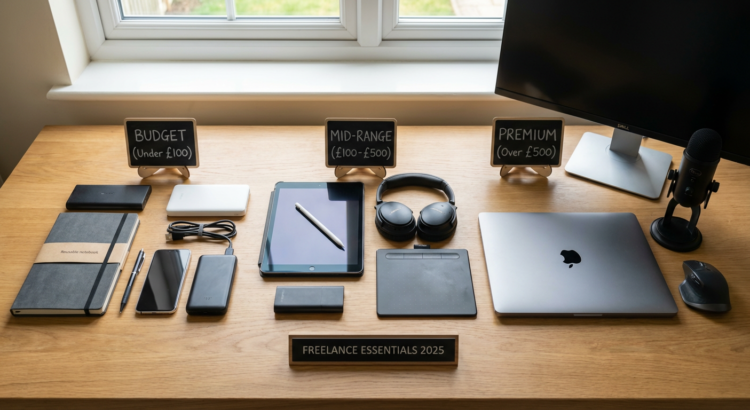
10 Practical Tools for Your Freelancing Business: A Hands-On Guide Organized by Cost
Running a freelancing business means juggling clients, projects, invoices, and deadlines all at once. The right tools can make this balancing act much easier, but only if you know how to use them effectively. This guide breaks down ten essential tools by their cost categories, from free to premium, with specific tips on how to implement each one immediately. Whether you’re just starting out or refining your existing setup, you’ll find actionable advice that you can put into practice today.
- Legiit: Your First Stop for Finding Help and Growing Your Client Base
Before investing in expensive software subscriptions, start by building your income streams and getting help with tasks that slow you down. Legiit is a freelancer marketplace where you can both offer your services to clients and hire other freelancers for work you need done. Here’s how to use it right away: create a clear, specific service listing with examples of your work, set your pricing based on what you can deliver reliably, and respond to inquiries within a few hours to build trust. On the flip side, when you need services like graphic design, content writing, or technical support, search for providers with strong reviews and detailed portfolios. Start with smaller projects to test quality before committing to larger contracts. This approach helps you earn money while staying lean on overhead costs.
The platform works on a commission basis, so you only pay when you make a sale or hire someone. This makes it perfect for freelancers who want to keep their fixed costs low while still accessing a full marketplace of talent and potential clients.
- Wave: Free Accounting That Actually Works
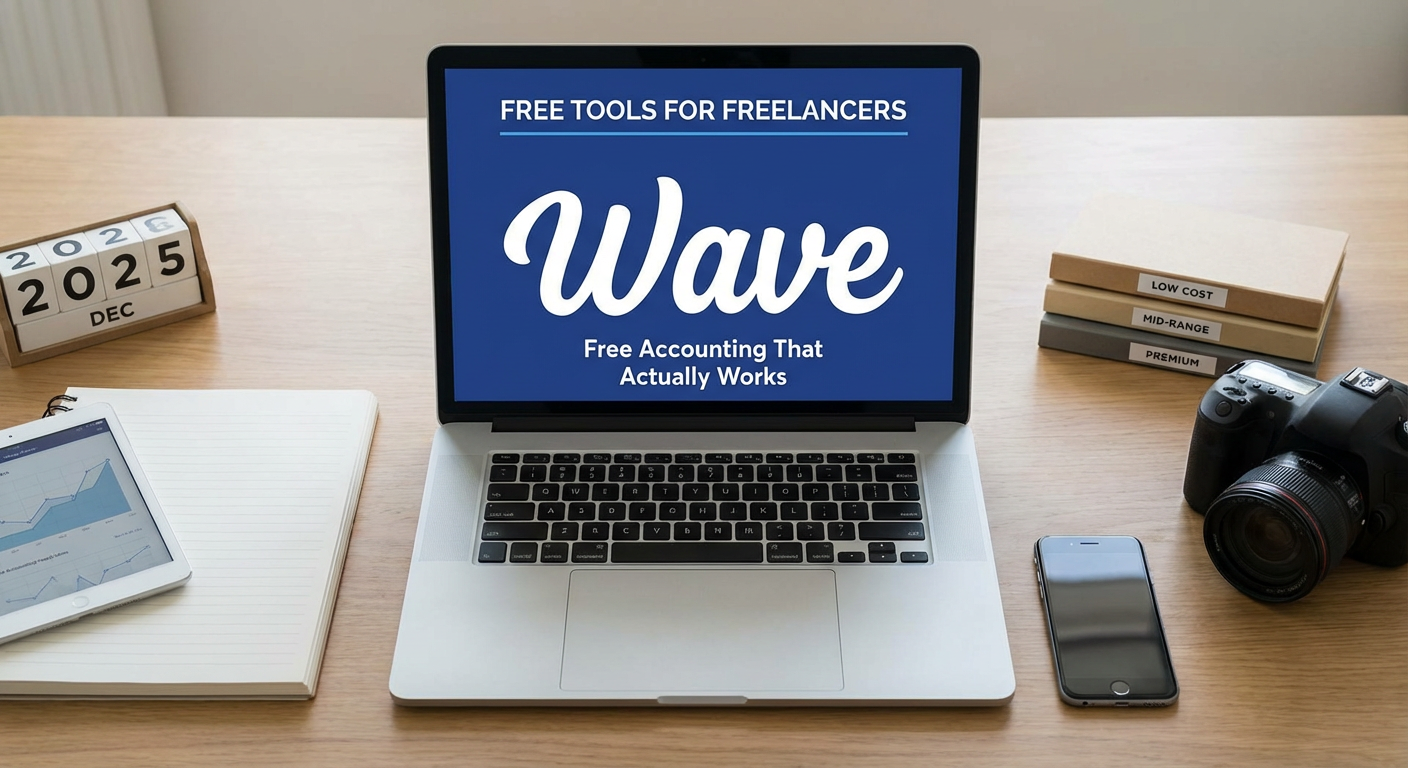
Wave offers completely free accounting software that handles invoicing, expense tracking, and basic financial reports. Set it up in under an hour by connecting your business bank account, creating your first invoice template with your branding, and categorizing your initial expenses. The key to making Wave work for you is consistency: spend fifteen minutes every Friday afternoon reviewing your transactions and assigning them to the correct categories.
Create invoice templates for your most common service packages so you can bill clients in under two minutes. Turn on automatic payment reminders so you don’t have to chase late payments manually. Wave charges small fees for payment processing if clients pay by card, but the core accounting features remain free forever. This makes it ideal for freelancers who need professional financial tracking without monthly subscription fees eating into their profits.
- Google Workspace: Pay Only for What You Need
Google Workspace starts at around $6 per month for the basic plan, giving you professional email, cloud storage, and collaboration tools. The practical setup: choose a domain name that matches your business name, set up your primary email address, and create three folder systems in Google Drive for client work, administrative documents, and marketing materials.
Use Google Calendar to block out focused work time for each client project, and share specific calendars with clients so they can book meetings without the back-and-forth emails. Set up Google Forms for client intake questionnaires to standardize how you gather project requirements. The collaboration features mean you can share documents with clients and get real-time feedback without version control nightmares. Start with the basic plan and only upgrade to higher storage tiers when you actually need them, not preemptively.
- Notion: The Free Tier Handles Most Freelancer Needs
Notion offers a free personal plan that gives solo freelancers more than enough functionality to organize their entire business. Spend your first hour building three core pages: a project tracker with columns for client name, deadline, status, and payment; a content calendar if you do any marketing; and a knowledge base where you store templates, contracts, and common responses to client questions.
The database features let you create different views of the same information, so you can see all projects by deadline, by client, or by status with a single click. Use the web clipper to save inspiration, competitor research, and helpful articles directly into your Notion workspace. The mobile app syncs instantly, so you can update project statuses or check deadlines while away from your desk. Most freelancers never need to upgrade to the paid plans unless they’re collaborating with a team of more than ten people.
- Canva Pro: Worth the Mid-Range Investment for Visual Content
Canva Pro costs around $13 per month and pays for itself quickly if you create any visual content for clients or your own marketing. The immediate action steps: create branded templates for your most common deliverables like social media graphics, presentation slides, or client reports. Use the background remover tool to clean up product photos or headshots without needing Photoshop skills. Set up brand kits with your colors, fonts, and logos so everything you create stays consistent.
The content planner feature lets you schedule social media posts directly from Canva, eliminating the need for a separate scheduling tool. Download the mobile app and take photos with your phone, then edit and post them within minutes. The template library saves hours of design time, especially when you need something professional quickly. If you bill clients for design work or use graphics in your marketing, this tool typically pays for itself within the first month through time savings alone.
- Loom: Free Video Communication That Reduces Meeting Time
Loom’s free plan allows up to 25 videos of five minutes each, which is plenty for most freelancers to communicate effectively with clients. Record quick screen shares to show clients progress on their projects, explain complex concepts that would take paragraphs to write out, or provide video responses to questions instead of scheduling calls. The practical workflow: when a client asks a question that needs context, hit record, show your screen while talking through the issue, and send them the link within minutes.
This approach cuts down on unnecessary meetings while still maintaining personal connection. Create a library of common explanation videos, like how to access their project files or how to provide feedback, so you can reuse them with multiple clients. The video links work on any device without requiring clients to download software or create accounts. If you find yourself scheduling lots of short status update calls, Loom videos can replace most of them and give everyone their time back.
- Toggl Track: Time Tracking That Takes Seconds
Toggl Track offers a free plan for solo users and premium plans starting around $10 per month for more features. Start tracking time today by creating one project for each active client, then simply hit start when you begin work and stop when you finish. The browser extension and mobile app mean you can track from anywhere without opening a separate application.
Run weekly reports to see exactly where your time goes, then use this data to price your services more accurately or identify clients who require disproportionate amounts of communication time. If you bill hourly, the detailed time logs give clients transparent breakdowns of what you worked on. If you bill by project, the data helps you estimate future similar projects more accurately. Set up the Pomodoro timer feature to work in focused 25-minute blocks, which often increases your productivity while giving you natural break points throughout the day.
- Grammarly Premium: Catch Errors Before Clients Do
Grammarly Premium runs about $12 per month and catches mistakes that the free version misses, including tone suggestions, clarity improvements, and advanced grammar issues. Install the browser extension so it works automatically in your email, project management tools, and anywhere else you write. The practical benefit shows up immediately in client communication: fewer misunderstandings from unclear writing, more professional-sounding proposals, and documents that require less revision.
Use the tone detector before sending sensitive emails to clients, especially when discussing scope changes or payment issues. The plagiarism checker helps if you write content for clients and want to verify originality before delivery. Set your writing goals based on your audience, like formal for corporate clients and casual for creative industry clients, so the suggestions match your actual needs. If you write anything for clients or send more than a few emails per day, the time saved on revision and the reduction in communication errors usually justifies the cost.
- Calendly: Paid Plans Eliminate Scheduling Friction
While Calendly offers a free plan, the paid tiers starting around $10 per month add features that save significant time for busy freelancers. Set up different meeting types for discovery calls, project kickoffs, and regular check-ins, each with appropriate time lengths and buffer times between meetings. Connect it to your Google Calendar or other calendar system so it only shows your actual availability, preventing double-bookings.
The paid features let you require payment for consultation calls, send automatic reminders to reduce no-shows, and ask custom intake questions before the meeting so you show up prepared. Add your Calendly link to your email signature, website contact page, and proposal documents so potential clients can book time with you immediately instead of playing email tag. Configure your availability to protect your focused work time, like blocking out mornings for deep work and only offering meetings in the afternoon. This small monthly investment often returns hours of saved time each week.
- Adobe Creative Cloud: Premium Investment for Serious Creative Work
Adobe Creative Cloud runs around $55 per month for the full suite, making it the most expensive tool on this list but necessary for many creative freelancers. If you do photography, video editing, graphic design, or web design professionally, the industry-standard tools often matter for client expectations and file compatibility. Start by mastering one application thoroughly rather than trying to learn everything at once: Photoshop for image editing, Premiere Pro for video, or Illustrator for vector graphics.
Use Adobe Portfolio, included with your subscription, to build a professional website showcasing your work without additional costs. The cloud libraries feature lets you sync assets across applications, so color palettes and logos stay consistent across all your projects. Take advantage of Adobe’s tutorial library to learn advanced techniques that let you charge premium rates. Only subscribe to this if your clients specifically request Adobe formats or if you’re competing for work where professional-grade output makes a noticeable difference. Otherwise, more affordable alternatives might serve your needs just as well while keeping your overhead lower.
Building an efficient freelancing toolkit doesn’t mean buying every popular app you hear about. Start with free and low-cost options, implement them fully, and only upgrade or add new tools when you hit clear limitations. The tools listed here span from completely free to premium investments, giving you options at every budget level. Focus on actually using each tool consistently rather than collecting subscriptions that sit unused. As your business grows and your income increases, you can gradually invest in premium options that save time and improve your client experience. The key is matching your tools to your actual workflow needs, not the other way around.